
Live migration
EnterpriseIn the cloud, every workload/VM is assigned to hardware when it’s created. A scheduler picks a node and from then on the two are inextricably linked until the workload finishes and the VM can be destroyed. If the node needs patching, runs hot, gets expensive or starts to fail, the only way to separate them is to stop the workload.
Live migration breaks that link. A running microVM, with its memory, CPU state, network identity and attached volumes can move to another node and carry on. Both the workload and the user won’t know this has happened.
Draining
Live migration
This is a fundamental shift: Where a workload runs no longer needs to be decided at creation-time, you can now decide and change this at any time, as often as you like, with better information, as conditions change, etc. This brings an unprecedented level of operational and budgetary flexibility.
- Live maintenance: Patch a node now instead of waiting for it to drain
- Load balancing: Move instances off a busy node, or off one that has run out of memory
- Instant scale in: Clear lingering instances off a cordoned node and shut it down
- Spot capacity: Run critical workloads on spot instances and move away on an interruption notice
- Hardware trouble: Leave a host that reports disk or memory errors before it fails
- Packing for cost: Consolidate onto fewer nodes at quiet times and power the rest down
- Hardware refresh: Move onto a new hardware generation with no downtime
- Moving between sites: Bring instances closer to users, or out of a closing data centre
- Noisy neighbours: Move a latency-sensitive instance away from a resource hog
Windows VMs
EnterpriseUntil now, Unikraft has been a Linux-only outfit. That changes with Release 15. Windows now runs on the platform as a VM, right next to your Linux microVMs.
A Windows instance on Unikraft can do the same as any other. It scales to zero when idle and wakes on the next request, it can be captured as a template and stamped out from there, and it can be suspended and snapshotted like the rest.
Good news if you have workloads that never made the jump to Linux!
The dashboard
- Terminal: Installing a CLI and logging in just to run one command is a lot of ceremony. The new Terminal runs the real unikraft CLI in your browser, signed in as you. It docks at the bottom of the page, stays open while you click around, supports several session tabs, and opens links from command output in the dashboard.
- Environment variables: Edit them on the instance’s Runtime tab, or paste an
.envfile. Save applies them on the next restart; Save and restart applies them now. - New instances: Create from an image, template, checkpoint or fork, with port forwards, volumes and metro-aware sliders. Create from code turns the form into a CLI command or SDK snippet.
- Billing and plans: Org admins upgrade from the new Billing tab via Stripe, and manage or cancel through the Customer Portal.
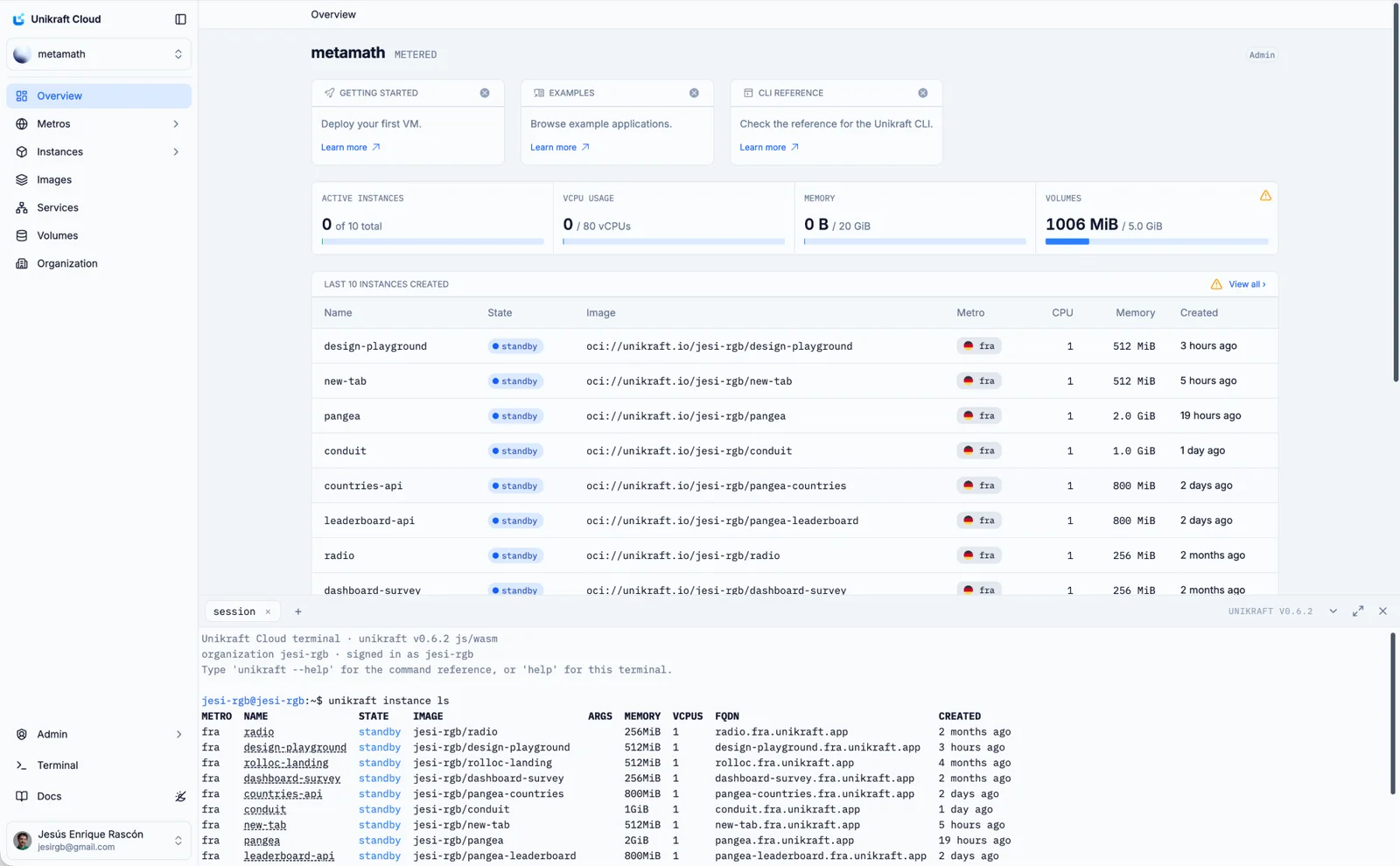
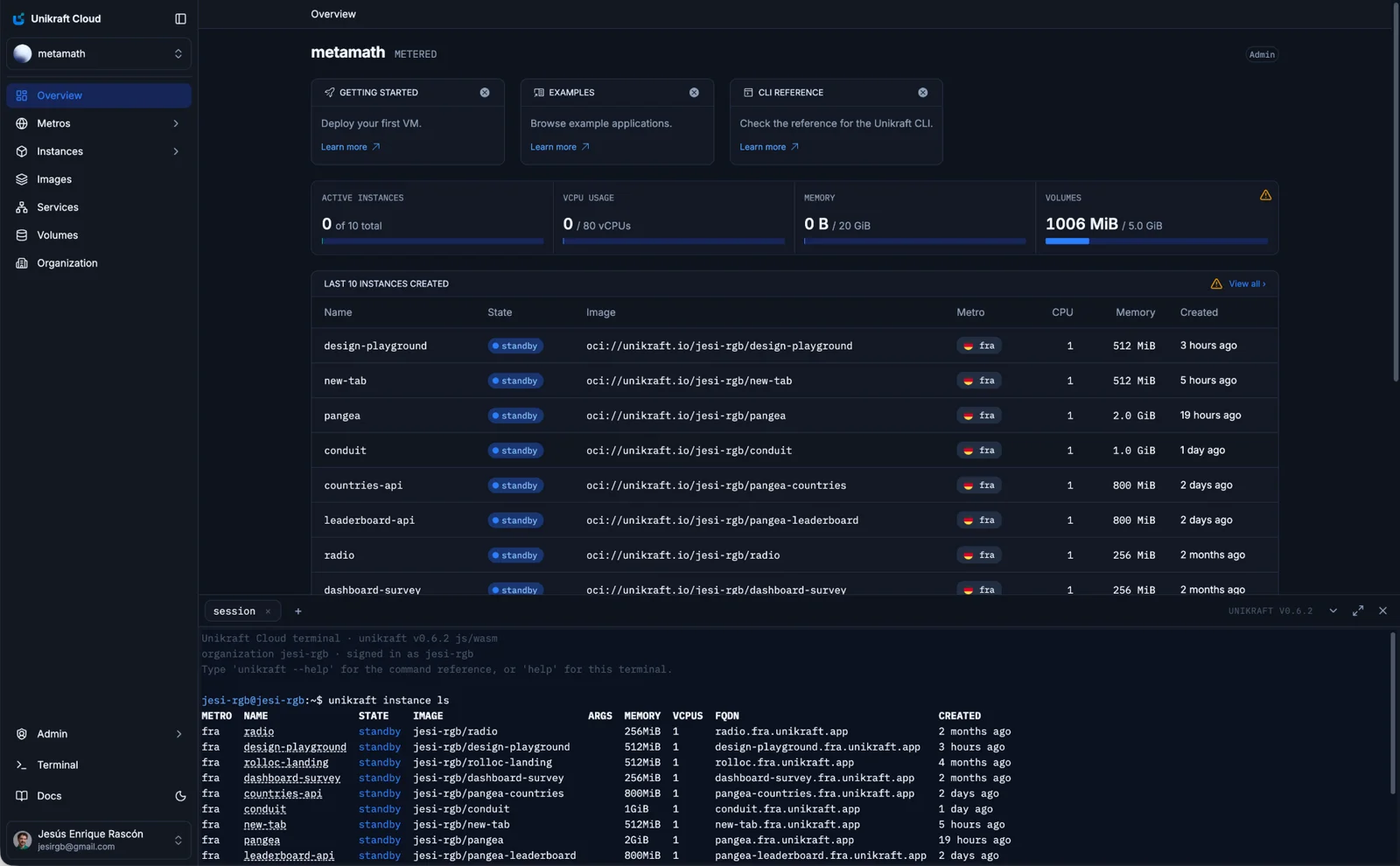
The Terminal, docked at the bottom of the dashboard.
More updates
The CLI on Windows
Until now, running the unikraft CLI on Windows meant going through WSL. The CLI is now built and released for Windows on amd64 and arm64, with a PowerShell installer: irm https://unikraft.com/cli/install.ps1 | iex.
Memory vertical scaling on ARM64
EnterpriseARM64 instances no longer have to be sized for their peak.
Release 14 brought vertical memory scaling to x86-64, and Release 15 brings it to microVMs on ARM64, with the same API. The default guest kernel configuration enables it on both architectures, so images built with it, and the guest kernel package, support it without a custom kernel.
Template updates
Templates let you pay the startup cost once and stamp out instances in milliseconds. Until now a template was frozen at creation: a new application version needed a new template, as well as repointing every client and autoscale configuration.
Now a template updates in place: change its image, and the platform boots a new revision, snapshots it, and gives it the template’s UUID and name. Instances from the template get the new revision at their next start, and autoscale uses it for new instances. Nothing that references the template has to change.
Manage the instance from inside its shell
In unikraft instance shell, a line starting with : runs in the CLI instead of on the instance: :mount, :restart, :edit, :suspend and friends, use :help to list them all. No second terminal, no reconnecting. The same builtins work in the instance terminal in the dashboard.
Runs in the unikraft CLI. Mount a volume, edit, restart or suspend the instance you are in.
Runs on the instance. Any other line goes to the shell inside the microVM, as before.
: manage the instance, everything else
runs inside it.
Integrations
Kraftlet: instant pod status and custom DNS
EnterpriseUp to 15 seconds is a long time for Kubernetes to think a dead pod is fine. Kraftlet now updates a pod the moment its instance stops or fails, so controllers replace it at once. It also passes a pod’s dnsConfig through to its instance.
Netshield: egress firewall for sandbox pods
EnterpriseNetshield sits in front of a pod. It starts closed and only lets out what a policy allows, by host, network, port or protocol. It can intercept TLS, rate-limit, and inject secrets into outgoing headers, so a sandbox sends {{GITHUB_TOKEN}} and never sees the real value.
In Kraftlet, a pod gets its own shield by pointing at a PodTemplate. Kraftlet creates the shield, routes the pod through it, and deletes it with the pod.
A sneak preview of what’s next
A taste of what Release 16 has in store:
Infinity snapshots
Never run out of room, never lose a snapshot.
AMD GPU support
A second GPU family for your microVMs.
Remote builds
Build your images on Unikraft instead of on your laptop.
Remote desktop in the dashboard
Open a desktop session to your instance straight from the dashboard.
…and several others we are not listing, because we do not want to spoil all of the fun :)